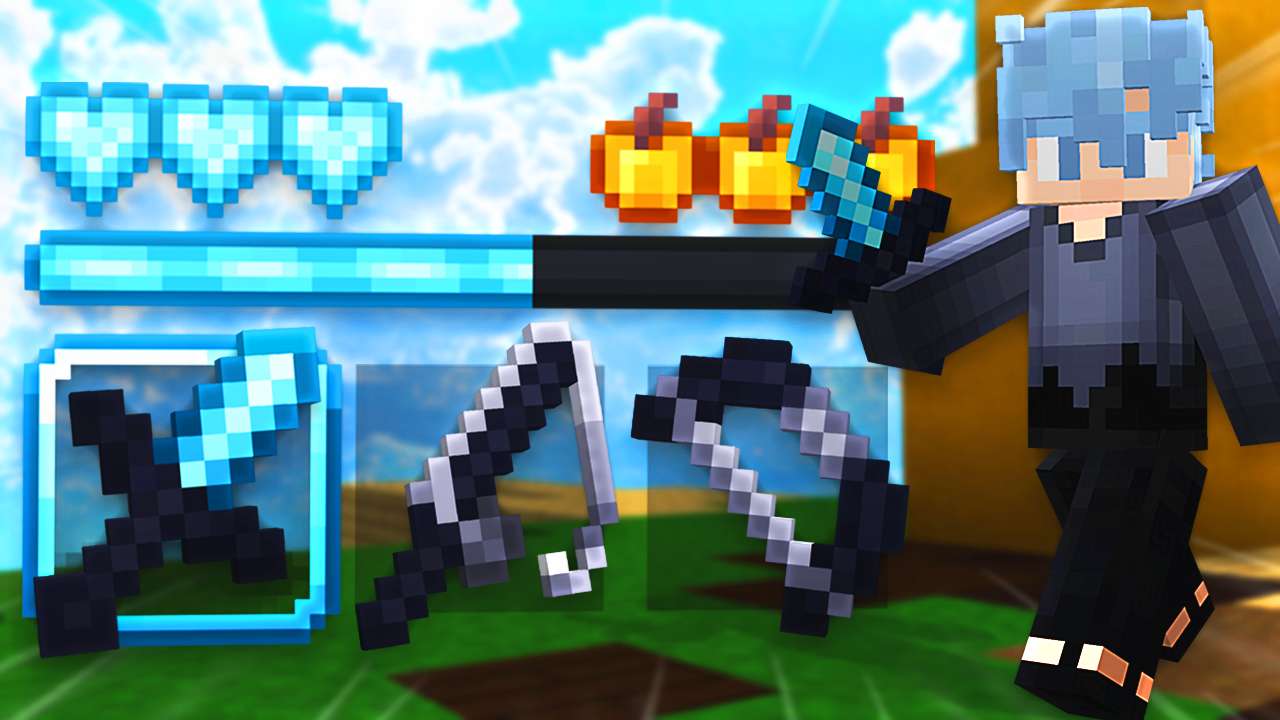
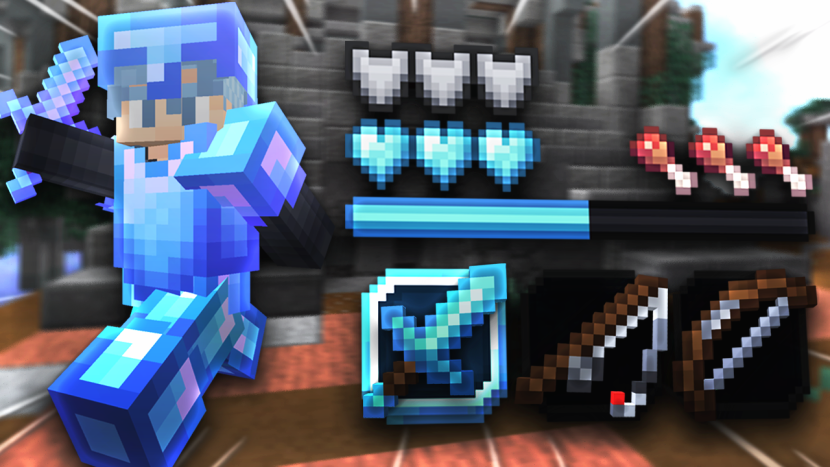
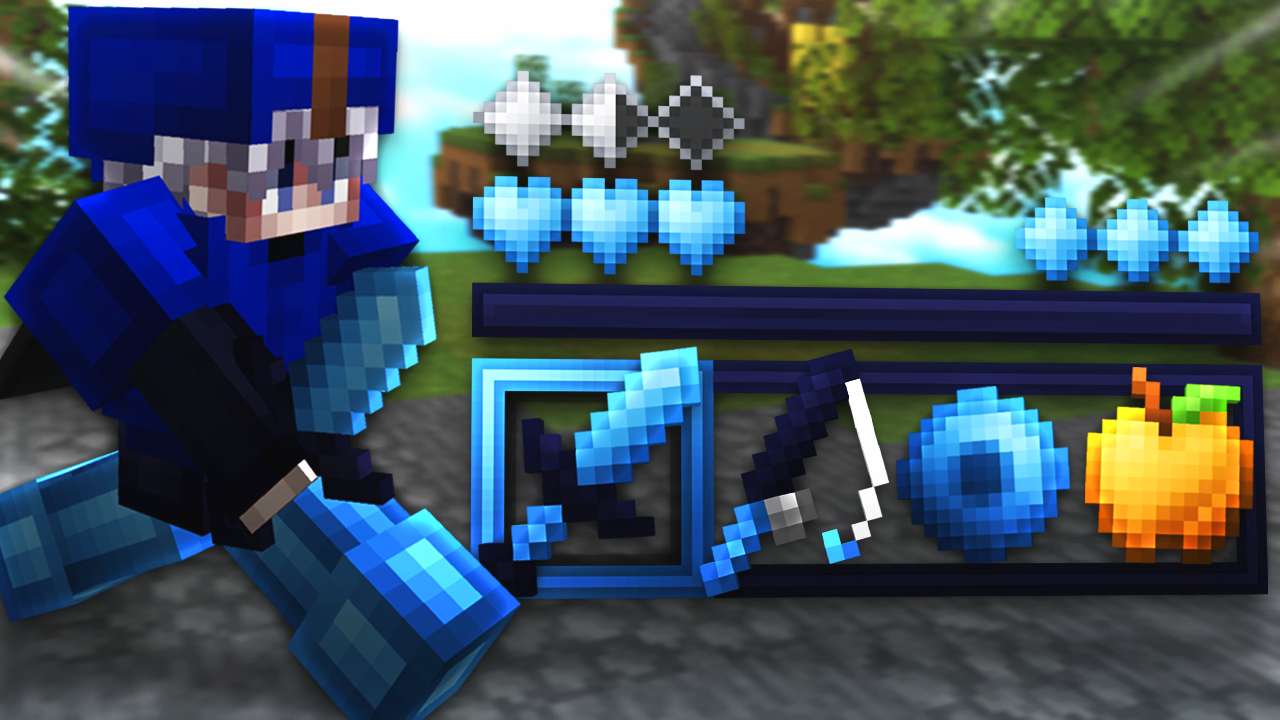
 PVPRP
PVPRP
Install, fix, and create Minecraft texture packs.
Pick a guide, then move through the library a few at a time
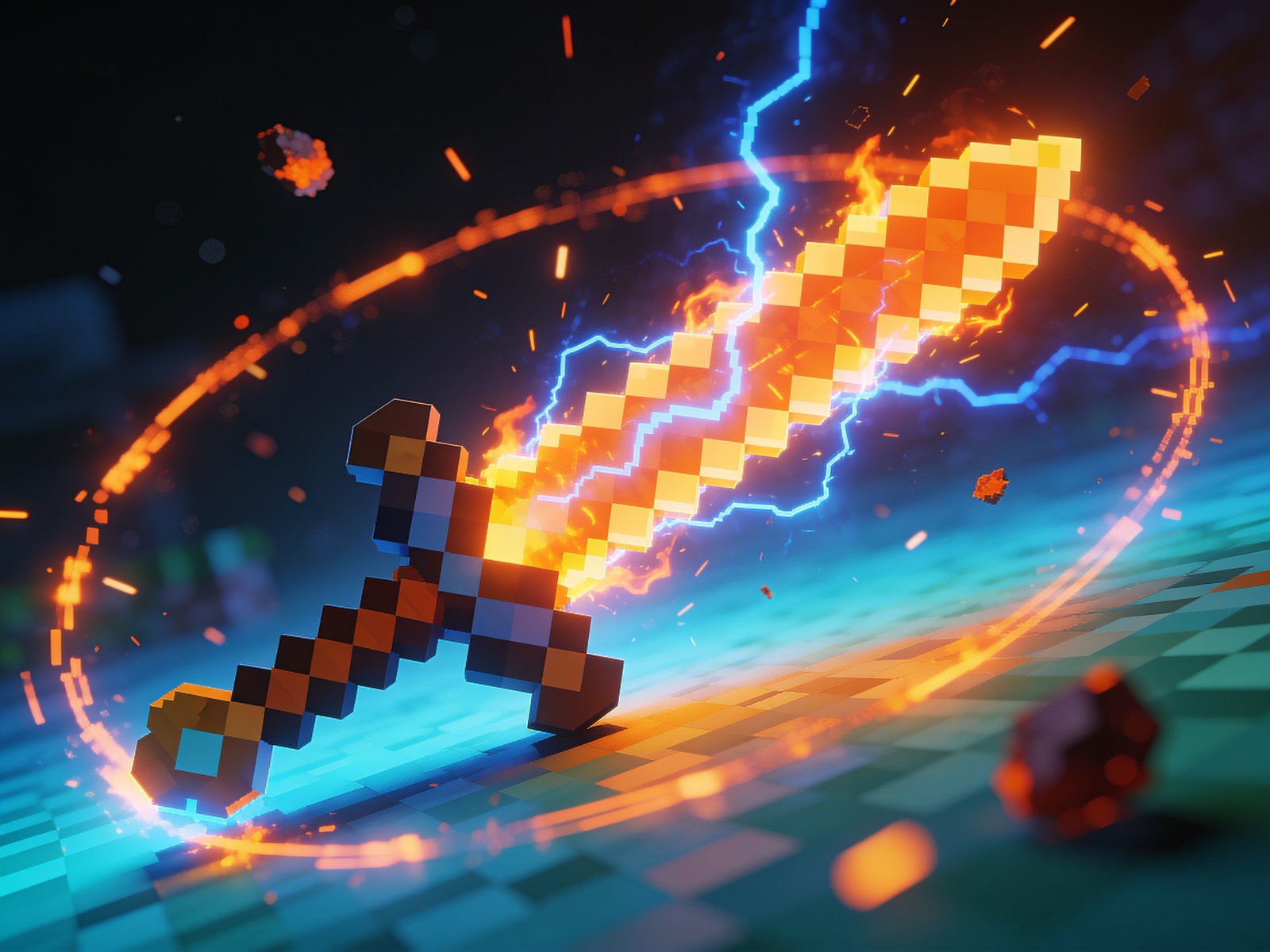
Turn any pack into a competitive PvP texture pack: clean short swords, low fire, simple particles, clear potions, and high FPS. Free, beginner-friendly steps.

What Crystal PvP and Box PvP are, what makes a great texture pack for them (clear totems, crystals, clean swords), and where to find the best free packs on PVPRP.
Install Minecraft Bedrock texture packs on phone, tablet, Windows, and console. How to open .mcpack files, activate Global Resources, manual install, and fix packs that will not show up.
Learn how to make your own Minecraft texture pack from scratch with free tools like Paint.NET, Photopea, and GIMP. Set up the folder, edit textures, pick a resolution, and test it in-game. Beginner friendly.

Improve Minecraft PvP visibility by choosing cleaner swords, readable blocks, low fire, simple particles, and texture packs that reduce visual clutter.
Fix custom skies not showing in Minecraft texture packs by checking OptiFine or Iris support, sky settings, pack order, time, and folder structure.
Learn when 1.8.9 Minecraft texture packs work on newer Java versions, why version warnings happen, and how to pick safer packs for 1.20 or 1.21.

Learn what Minecraft texture pack resolutions mean, how 16x, 32x, 64x, 128x, 256x, and 512x affect FPS and visuals, and which one to pick.

Find lightweight Minecraft texture packs for low-end PCs, with tips for better FPS, 16x packs, clean PvP visuals, and settings that help performance.

Fix a Minecraft resource or texture pack that is not showing up. Check Java .zip files, Bedrock .mcpack imports, folders, pack.mcmeta, and version errors.

Learn how FPS boost texture packs work, what resolution to choose, which pack features can hurt performance, and how to find lightweight Minecraft packs on PVPRP.
Understand the difference between Minecraft Java and Bedrock texture packs, which file type to download, and why some packs do not work on your edition.

A simple guide to installing Minecraft texture packs on Java, Bedrock, Lunar Client, and Badlion, plus fixes for packs that do not show up.

Learn how to choose Minecraft 1.21 PvP texture packs on PVPRP, including 1.20/1.21 uploads, newer 1.19-tagged packs, FPS, visibility, and version checks.
More ways to use the site

Save your profile, upload packs, and start building XP.

Find pack lists by category, color, and play style.

Earn XP on PVPRP and Discord as the leveling system comes back.
Search Minecraft packs by style, resolution, version, creator, or game mode.
Packs by game mode and style


Customize your player
Find your next look, download it in one click and wear it in game.

Every cape ever released, and how to get the ones still out.
Convert, merge, overlay, and find packs
Your pack, minus what gets in the way: as an overlay on top, or built right into it.
Short swordsCrosshairLow fireClear glass+12 more Open Overlay MakerStack banner patterns into an OptiFine cape, or draw your own pixel cape, and see it on your own skin in 3D.
Banner patternsPixel editorYour skin in 3D Open Cape MakerUpdate or downgrade any Java pack from 1.8.9 to 26.1+, or convert it to Bedrock version.
Open converterSaw a pack in a video or screenshot? Upload it to find the pack.
Open Find a PackTurn any image into a custom sky pack, or describe one and let AI build it.
Open generatorKeep your OG pack and mix in blocks, sky, GUI or items from a newer one — combined into one pack, for any version.
Open merger
 Join Now