

Quick Answer
Minecraft texture pack resolution is the size of each texture. Default Minecraft is 16x. A 32x pack is sharper, 64x and 128x are more detailed, and 256x or 512x packs are usually heavier. For most PvP players, 16x or 32x is the best starting point.
16x means 16 by 16 pixels for a typical texture. Bigger textures allow more detail and use more texture memory. They do not automatically make a pack clearer or better for PvP.
This guide breaks down every common Minecraft texture pack resolution so you can choose the right pack for your PC, game mode, and style.
What Does Texture Pack Resolution Mean?
Resolution means how many pixels are used for each block or item texture. A 16x texture uses a 16 by 16 pixel image. A 32x texture uses 32 by 32 pixels. Higher numbers allow more detail, but they also ask more from your PC.
16x Texture Packs
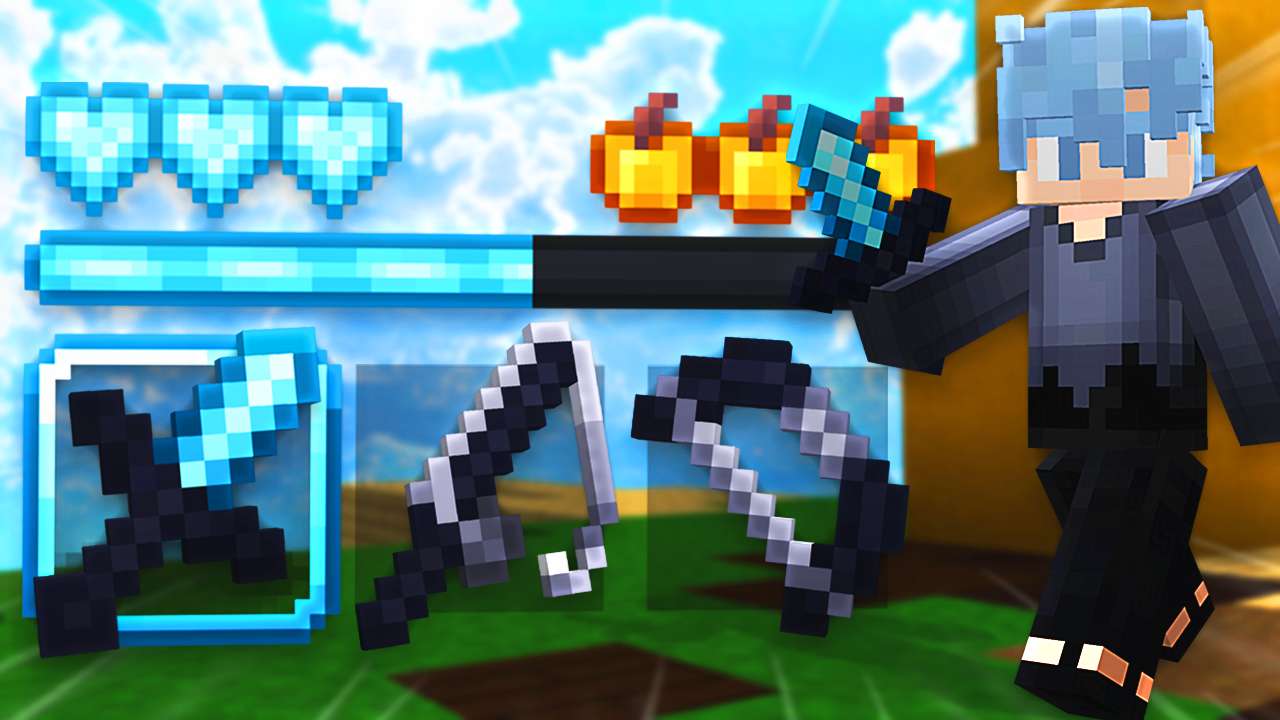
16x is the default Minecraft resolution. It is usually the best option for low-end PCs, PvP, Bedwars, Bridge, and players who want the game to stay readable. Most FPS boost packs are 16x because they keep textures simple and lightweight.
Best For
- Low-end PCs
- PvP and Bedwars
- Stable FPS
Why Players Use It
- Close to default Minecraft
- Fast to load
- Usually less visual clutter


 516.2K
 1.1M
1.1M32x Texture Packs
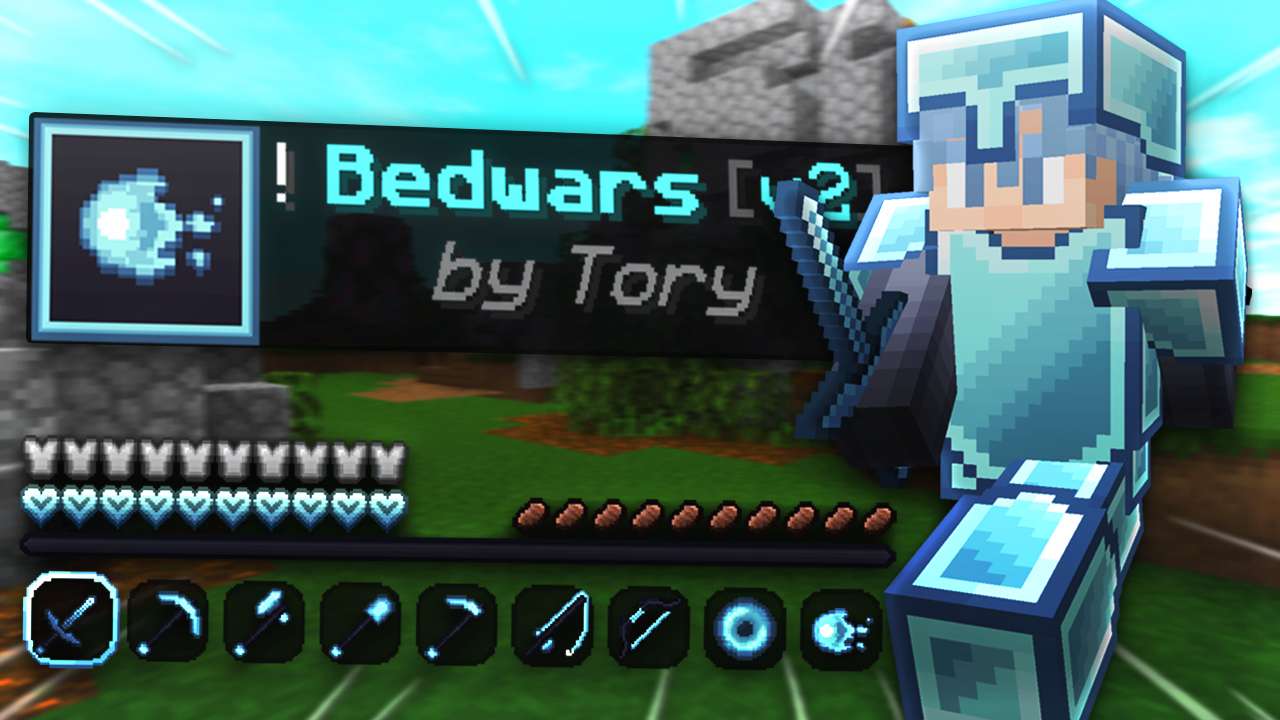
32x packs are a popular middle ground. They look sharper than default Minecraft without usually becoming too heavy. If your FPS is stable on 16x and you want cleaner items, smoother swords, or nicer blocks, 32x is a good next step.
Good Fit
Players who want sharper PvP visuals while still keeping Minecraft smooth.
Watch Out
Some 32x packs add effects, skies, or particles that can still feel heavier than expected.
64x And 128x Texture Packs
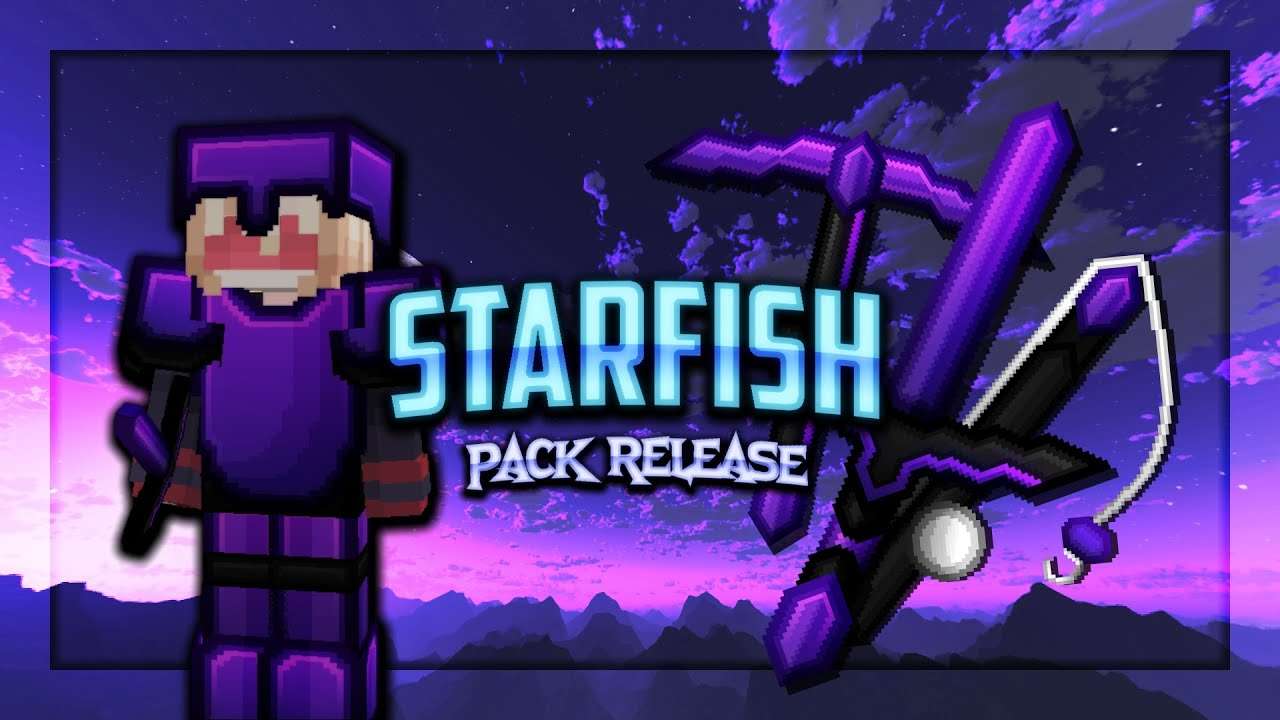
64x and 128x packs are more detailed. They can make items, armor, blocks, and skies look cleaner, especially for screenshots or casual play. For competitive PvP, they are not always better because extra detail can make fights harder to read.
64x
A good detail upgrade if your PC is decent and you want sharper textures without going extreme.
128x
More detailed and heavier. Better for looks than max FPS.
PvP Use
Use these only if the pack still keeps swords, blocks, and particles clean.
Performance
If your FPS drops or menus stutter, go back to 16x or 32x.
256x And 512x Texture Packs
256x and 512x packs are high-resolution packs. They can look impressive, but they are usually not the first choice for PvP or low-end PCs. These packs can use more VRAM and memory, especially when combined with shaders, custom skies, or large item textures.
Use 256x If
You want high-detail visuals and your PC already runs Minecraft smoothly.
Use 512x If
You care more about visuals than FPS and have a stronger PC.
Avoid If
Your game already lags, your PC has low memory, or you mainly play fast PvP modes.
Test First
Try one high-resolution pack at a time so you know what caused any FPS drop.
Which Resolution Should You Pick?
If you are not sure, start with 16x. It is the safest choice and works well for most players. Move to 32x if you want a cleaner look. Try 64x or 128x if your PC can handle more detail. Use 256x or 512x when visuals matter more than performance.
Find the right resolution on PVPRP
Search by resolution, style, creator, or game mode. If you play PvP, compare 16x and 32x first before testing heavier packs.

 Join Now