

Quick Answer
If a high-resolution pack is slowing your game down, try a 16x pack and compare the same scene. It can reduce texture-memory use, but a different 16x pack will not automatically boost FPS over vanilla. Clearer visuals and higher frame rates are different benefits.
Treat “FPS boost” as a pack category, not a guaranteed result. Your render distance, shaders, hardware, and the scene you are playing can matter much more than the texture pack.
The goal is not to make Minecraft ugly. The goal is to remove visual noise that does not help gameplay.
What to change and what to expect
Lower Resolution
- 16x is the safest choice
- 32x can still be fine
- 128x+ is usually not ideal for FPS
Clarity, not extra FPS
- Simple blocks
- Clean particles
- Readable items
Fewer Heavy Effects
- Avoid heavy animations
- Watch custom skies
- Skip oversized textures
Pick The Right Pack Type
If your PC struggles, start with 16x. It is close to default Minecraft and usually gives the best balance between visibility and performance. If your PC is decent but you want sharper visuals, try 32x. Higher resolutions are better for screenshots than competitive PvP.
Best Starting Point
Use 16x packs for PvP, Bedwars, Bridge, and general performance.
When To Use 32x
Use 32x if you want sharper items but your FPS is already stable.
Browse lightweight packs
PVPRP search can help you start with the right category instead of guessing from random downloads.
Settings That Help Alongside Texture Packs
Start with video settings if the game is slow even with default textures. Change one setting at a time, then test in the same world.
Lower Render Distance
Try 8-12 chunks for PvP servers. You usually do not need huge render distance in duels or Bedwars.
Reduce Particles
Less particles can make fights easier to see and reduce visual spam.
Use Performance Mods
Sodium, OptiFine, Lunar, or Badlion can help depending on your setup and version.
Test One Pack At A Time
Do not stack five packs and blame one. Test a single pack first so you know what changed.
What To Avoid
Very High Resolution Packs
They can look sharp, but they often cost more memory and GPU power.
Heavy Animated Textures
Animations can look cool but may make weaker devices feel less stable.
Busy GUI And Particles
For PvP, clean is usually better than flashy. You want to see the fight clearly.
Random Pack Stacking
Stacking packs can create broken textures or confusing overrides. Keep it simple.
Example Pack To Test
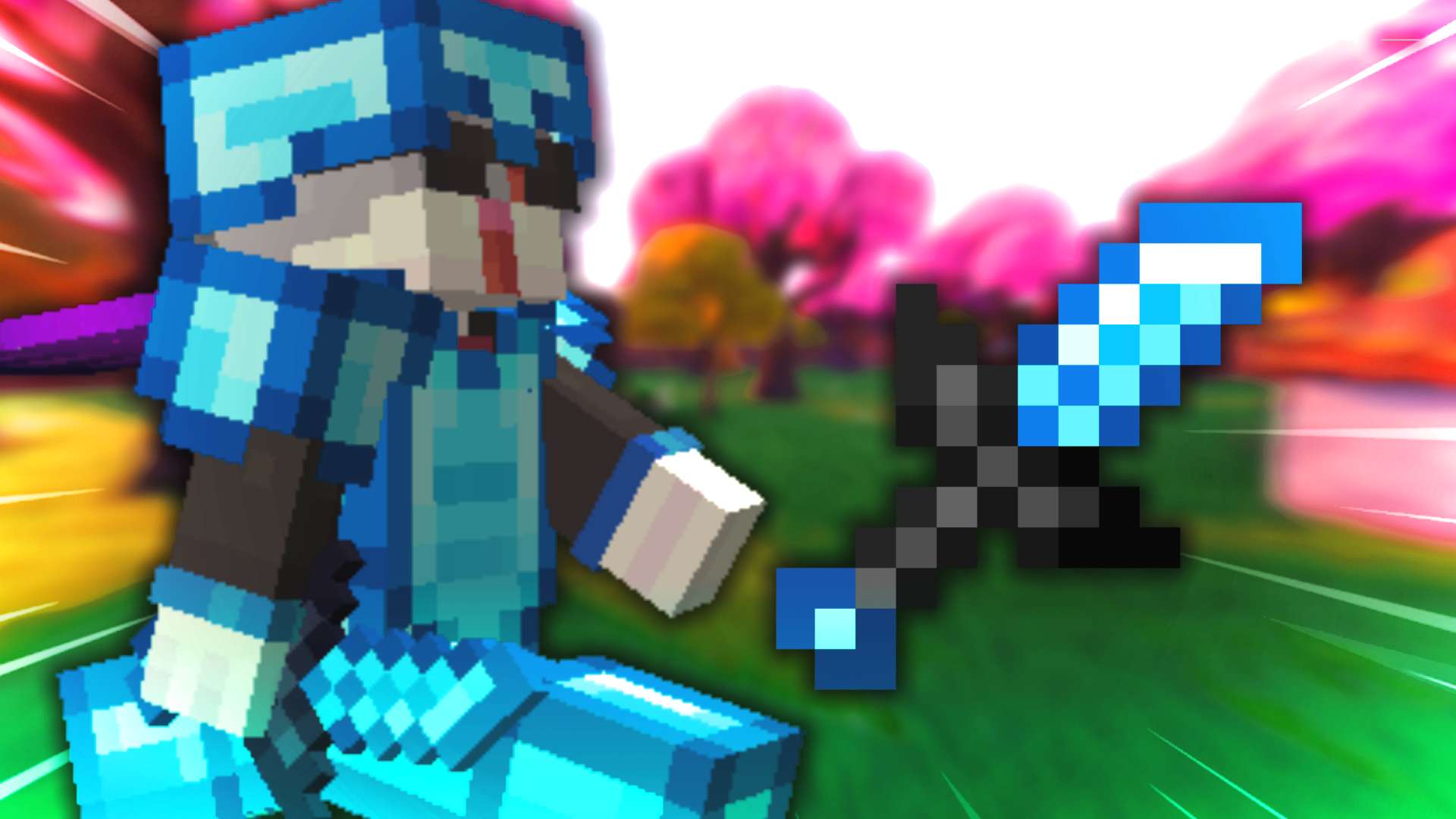
Try a clean 16x PvP-style pack first. If it feels good, compare it with other 16x and FPS boost options on PVPRP.


 200.3K
 142.2K
 Join Now